What Is EzPaste?
Let's say that your workbook contains 50 charts and named ranges and that you want to copy 35 of them at once to a new PowerPoint while each of the selected items should be copied to a new slide in a certain order and in a certain format.
When you click on the Control Center on the EzPaste toolbar, a form will be loaded which will automatically display the list of all the 50 charts and named ranges found in the workbook.
You check the items to paste and set them in the required pasting order. You select the application destination (PowerPoint in our case), the pasting format and the PowerPoint mode (to new created slides or to predefined slides numbers in an existing presentation) then click Continue.
EzPaste is a lightweight Excel add‑in that lets you select any number of charts and tables and paste them all at once, in one click.
How does it work?
This is the main interface the user gets when they load EzPaste from the actual workbook.
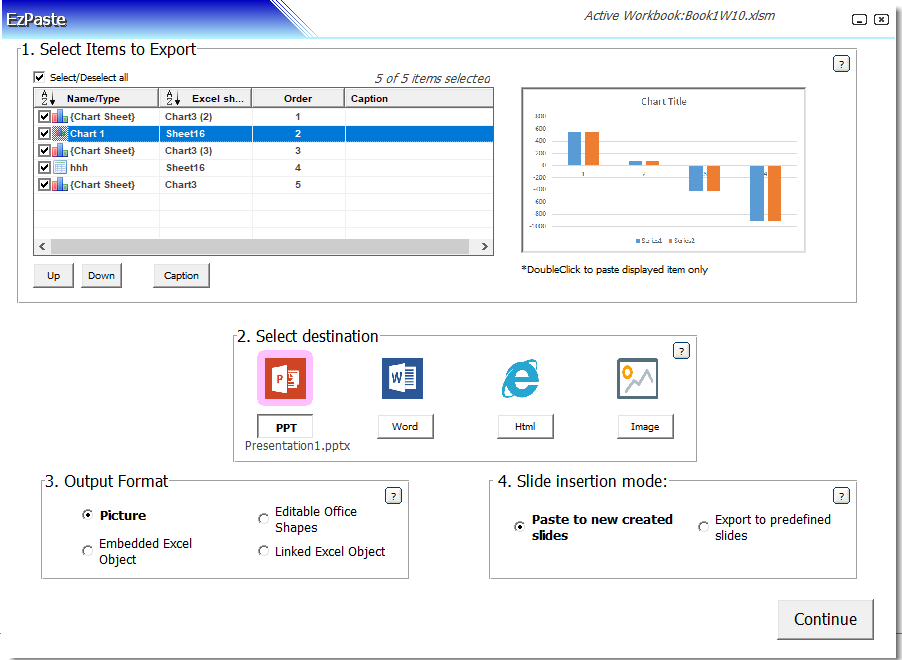 1 Select Items
2 Destination
3 Output Format
4 Slide Mode
1 Select Items
2 Destination
3 Output Format
4 Slide Mode
Installation
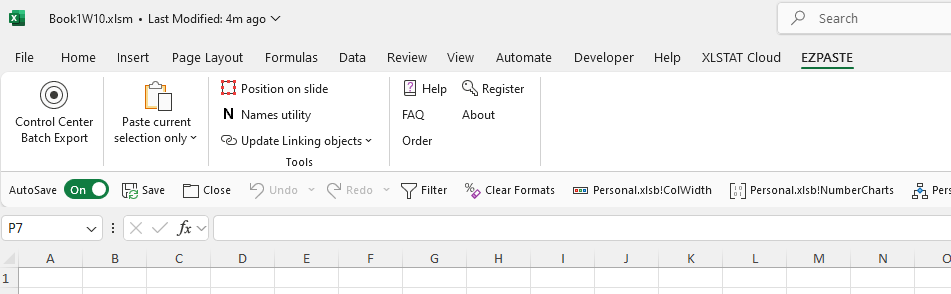
Once installed, EzPaste features are immediately available for any Excel workbook, from the new EzPaste tab created within Excel.
EzPaste package will usually be installed in the Users directory under the following path:
"C:\Users\User\AppData\Roaming\Microsoft\AddIns\EzPaste"
Uninstalling EzPaste may be done from Windows control panel "add/remove programs" or by clicking on the Uninstall file created in:
"C:\Users\User\AppData\Roaming\Microsoft\AddIns\EzPaste\uninstall\unins000.exe"
⚠️ Important: It is highly recommended to close Excel and uninstall older versions of EzPaste, before installing EzPaste new version.
Key Strengths
Zero‑Config Persistence
Your selections, captions, and ordering are stored in a hidden sheet—reopen your workbook and settings load automatically.
Precision Layout
Two PowerPoint modes: new slides auto‑added, or paste into predefined slides with full control over position and size.
Flexible Output
Choose from images, native Office shapes, embedded worksheets, or linked Excel objects.
Licensing & Registration
Try every feature for free. When you're ready, unlock unlimited exports with a single one‑time purchase — no subscriptions, no renewals.
Free Evaluation
- All destinations enabled — PowerPoint, Word, PDF, HTML, images and Outlook
- Up to 4 objects per export
- No time limit — use it for as long as you like
- Great for testing EzPaste on your own workbooks
Lifetime License
- Unlimited objects per export
- All current and future feature updates included
- Deactivate & move your license to a new PC anytime, in seconds
- Priority email support
How to register EzPaste
- Purchase a license — you'll receive a key by email in the format
EZP7-XXXX-XXXX-XXXX. - In Excel, open the EzPaste ribbon tab and click License (or Register from the Control Center).
- Paste your key into the Activate field and click Activate. An internet connection is required for the initial activation.
Moving to a new computer?
- On the old PC, open the License panel and click Deactivate — this instantly frees up your seat.
- On the new PC, activate EzPaste with the same license key. No need to contact support or wait — it's entirely self‑service.
Need multiple seats or a company‑wide license? Get in touch for volume pricing.
EzPaste — F.A.Qs
A: EzPaste is intended for completely automating and managing the otherwise manual and tedious process of copying and pasting objects from Excel to 6 main destinations (PowerPoint, Word, PDF, Web page, picture files and Outlook). EzPaste identifies automatically all the objects in the active Excel file. With a click of a button, hundreds of charts and tables from the active Excel file could be copied to their intended destination.
A: A nice feature in EzPaste is the ability to swiftly paste the active selection (chart or table) from the EzPaste toolbar, thus overriding the usual 3-4 steps (copy selection, go to application, paste special…). The feature is available for PowerPoint, Word, picture file and Outlook. It justifies by itself the adoption of EzPaste as a standard.
A: EzPaste identifies automatically 3 types of objects:
- Embedded charts within data Excel sheets
- Charts located in separate Chart-Sheet
- Tables (rectangular range of data)
A: Objects from Excel may be pasted as:
- Flat Pictures (that could not be edited within the target application). In Office2010/2013, various styles are available (Shadow, reflection...) from EzPaste
- Excel objects (that could be edited within PowerPoint or Word)
- Linked objects (That update themselves when data or format in the Excel source file changes)
A: EzPaste shows the list of the detected charts and tables in its Main Form. A preview window in the Form displays the picture of each selected object in the list when it is selected. Items could be checked/unchecked for controlling which objects will be actually pasted.
A: Not at all! Each time EzPaste is closed, all the settings are saved along with the Excel file to which it refers. Reopening the Excel file will automatically make its settings available to EzPaste.
A: EzPaste is installed as a regular Excel Add-In. Once installed, a new tab "EzPaste" is created in the regular Excel tabs row.
A: EzPaste monitors which files are open and active. In PowerPoint the objects will be pasted in 2 possible modes:
- To new slides automatically added to the active PowerPoint file
- To predefined slide numbers in the active PowerPoint file
Before pasting takes place, EzPaste will indicate you how many objects will be pasted and to what file, and ask for confirmation.
A: Not once registered — a licensed copy of EzPaste has no limit on the number of objects pasted per export.
A: Apart from the main object (chart/table), you may insert the slide title (entered and edited within EzPaste main form) and the path of the Excel sheet.
A: Yes. You simply create the structure you want on a sheet, then define the according range containing the structure as a defined name that will appear for EzPaste as a single object.
A: Objects are pasted according to their order of appearance in the Main Form list. This order could be controlled by sorting the list according to 3 keys (order of appearance in Excel, objects names and worksheets names). In addition, each item could be moved up and down in the list.
A: EzPaste provides a built-in utility for creating Tables of data in Excel. EzPaste identifies tables according to the name they have been assigned by the user. Only tables of data with a specific name are identified by EzPaste. The name serves as a fixed reference address for that table, regardless of the data inside the table. Names could be also allocated through the built Excel naming process.
A: EzPaste enables you to control the exact positioning of the objects in the target PowerPoint slides. It provides a visual utility in order to set the slides layout.
A: The probable reason is that the pasting format mode is "Excel editable objects" which takes longer time than the format mode "Picture", due to the fact that not only the object is pasted but also a lot of information about the spreadsheet that contains it.
A: A one‑time, lifetime license for $49 — no subscription and no renewal fees. Each key activates one computer. Businesses needing several seats can purchase additional licenses; see the Licensing & Registration section above for volume pricing.
A: The unregistered (evaluation) version lets you try every destination and feature for as long as you like, but each export is limited to 4 objects. Registering removes that limit entirely, so you can paste any number of charts and tables in a single export.
A: After purchasing, open the EzPaste ribbon tab in Excel, click License (or Register from the Control Center), paste in your key (format EZP7-XXXX-XXXX-XXXX) and click Activate. An internet connection is required the first time you activate.
A: Yes — your license isn't locked to a single machine forever. Open the License panel on your current PC and click Deactivate to instantly free up your seat, then activate with the same key on the new computer. It's entirely self‑service and takes seconds — no need to contact support, wait for approval, or buy a new key. This is handy when you get a new laptop, reinstall Windows, or switch between a work and home PC.